 MTScreen
Setup guide
Do the initial setup while parked. The app’s setup wizard guides you through the phone permissions and motorcycle connection.
STEP / 01
Install MTScreen
Install and update through Google Play. First, request access to the closed test.
Request beta access
Enter the Google account email you use in the Play Store below.
Wait for access
Once your account is added, you will receive an invitation with the testing link.
Join and install
Accept the test invitation and buy the app on Google Play. If you receive a free code, redeem it before buying.
Use the same Google account to join the test and install the app.
STEP / 02
Prepare Android Auto
Use Android Auto’s own developer settings — not the phone’s general developer options.
Open Android Auto
Find Android Auto in your phone’s Settings.
Enable developer mode
Tap the version information repeatedly and confirm the dialog.
Prepare the connection
Allow new vehicles, then start the head unit server. Follow the screenshots below.
Android Auto, step by step
Screenshots in English. Names and screen layout may differ on your phone. The outline highlights an option or status. Tap an image to enlarge it.
After restarting the phone, check whether the head unit server needs to be started again.
STEP / 03
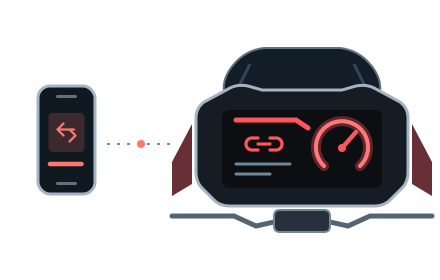
One last step. On the motorcycle.
Start the connection in MTScreen and follow its prompts. Once the phone is ready, select Ducati Connect on the motorcycle display to show the image. Pairing over Bluetooth alone does not start projection.