 MTScreen
Choose what’s on screen
Use Android Auto for compatible apps, or mirror your phone’s screen. Google Maps is one option — the connection is the main feature.
BUILT AFTER WORK. MADE FOR THE RIDE.
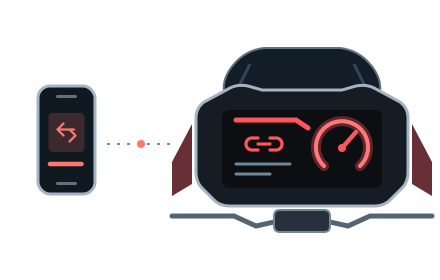
Bring more of your phone to the display you already have. Android Auto or phone mirroring, connected through your motorcycle’s Ducati Connect interface.
Independent hobby project · Currently in development
01 / THE IDEA
MTScreen started with a simple wish: to connect a phone to my Multistrada’s display in a way that fits how I ride. It is a personal project, developed after work and refined through real motorcycle tests.
Use Android Auto for compatible apps, or mirror your phone’s screen. Google Maps is one option — the connection is the main feature.
In Android Auto mode, the session can continue with the phone display off. Phone mirroring still needs an active screen. Battery use depends on the phone and apps.
While the connection session remains enabled, MTScreen retries after the motorcycle disconnects. You may still need to select Ducati Connect on the dashboard.
Adjust Android Auto’s interface size and image quality. Phone mirroring offers a full-image view or a fill option that crops the edges.
02 / BEFORE YOU START
The minimum requirements are a starting point, not a promise of compatibility with every device.
Ducati Connect is required. Project testing is carried out on a 2023 Multistrada V4 S.
Tested with a Samsung SM-G780G running Android 13. Bluetooth and Wi-Fi are required. iPhone is not supported.
A working, up-to-date Android Auto installation and Google Play services are required for this mode. Huawei phones without the Google ecosystem are not supported for Android Auto.
Pair with the motorcycle first. MTScreen then sets up the Wi-Fi connection. Confirm Android’s connection prompt when it appears.
Interface size and image quality can be adjusted in the app. This is the projection area, not the entire instrument cluster.
Android Auto depends on its developer head unit server and a compatible receiver build. It is not a certified Android Auto head unit; availability may change with updates.
03 / GET CONNECTED
Do the initial setup while parked. The app’s setup wizard guides you through the phone permissions and motorcycle connection.
STEP / 01
An APK from this website. No Google Play listing.
Use the release section below on your Android phone. Open the downloaded .apk file.
If Android blocks the installation, open Settings in the prompt and enable Allow from this source for the browser or file manager you used.
Return to the installer, tap Install, then open MTScreen. You can turn off permission for that installation source afterwards.
Some phones or regions may require additional developer-verification steps. Follow the system instructions; do not turn off Play Protect to install MTScreen.
Your browser
Only for the app used to open the APK
STEP / 02
Use Android Auto’s own developer settings — not the phone’s general developer options.
Search for Android Auto in your phone’s Settings. On Samsung: Settings → Connected devices → Android Auto.
Scroll to Version. Tap Version / Version and permission info repeatedly (about 10 times), then confirm the developer-settings dialog.
Open the ⋮ menu and select Start head unit server. Android Auto’s notification confirms that it is running.
Under Vehicles / Previously connected cars, enable Add new cars to Android Auto. Return to MTScreen and follow the setup wizard.
After restarting the phone, check whether the head unit server needs to be started again.
STEP / 03
Start the connection in MTScreen and follow its prompts. Once the phone is ready, select Ducati Connect on the motorcycle display to show the image. Pairing over Bluetooth alone does not start projection.
04 / DOWNLOAD & CHANGELOG
Downloads and release notes come directly from the MTScreen release catalogue. Only published versions appear here.
No. MTScreen is an independent hobby project. It does not replace the official app’s other services and is not supported or endorsed by Ducati or Google.
Multistrada V4 S, Multistrada V4 Pikes Peak, Multistrada V4 Rally, Multistrada V4 RS. Ducati Connect is required. Project testing is carried out on a 2023 Multistrada V4 S.
Android Auto only shows compatible apps. Phone mirroring is a separate mode and shows the phone’s screen; some apps may prevent capture.
Not in the Android Auto mode implemented by MTScreen. With phone mirroring, the phone screen needs to remain active. Test your phone’s background behavior before relying on it.
MTScreen does not require an MTScreen account. Google or individual apps may require their own sign-in. Diagnostic sharing in MTScreen is optional and off by default.
Audio routing depends on the phone, motorcycle and intercom pairing. Handlebar input support depends on the motorcycle and selected mode. Check both while parked; they are not guaranteed on untested setups.
Install a newer APK over the existing app using the same signing identity. The app can notify you about an update and require a minimum supported version. Release notes are listed above.
A personal experiment that keeps getting better through real use. Start with the compatibility notes, then take it one step at a time.
Back to setup